
Capabilities
VEE Wear applications use the MicroEJ libraries and the features of the VEE Port. This chapter lists them by domain.
Graphics and UI Libraries
VEE Wear applications use the MicroEJ UI libraries. The Wear Kernel provides MicroUI, Drawing, MicroVG, and MWT (see VEE Wear Kernel). An application includes the other libraries that it needs.
Library |
Role |
|---|---|
Display, images, fonts, drawing, and input events. |
|
Drawing |
Shapes and transformed images on top of MicroUI. |
Paths, gradients, vector fonts, and vector images. |
|
Easing functions for animations. |
|
Widgets, containers, styles, and event handling. |
|
Labels, buttons, images, lists, grids, and docks. |
|
Pages, navigation history, back navigation, and transitions. |
|
Front Panel and Flush Visualizer on the Simulator. |
VEE Script
VEE Script is a scripting language supported on MICROEJ VEE, for dynamic GUIs and real-time information displays. Its syntax is a subset of JavaScript: it evaluates expressions, without statements or blocks. The Facer engine uses it to interpret the scripting language of the Facer watch faces.
The expressions are parsed and serialized into a binary file off the device. At runtime, the watch evaluates them depending on the runtime context.
See VEE Script for the tags, the functions, and the expression types. The VEE Script parser and interpreter are available on demand.
Facer Watch Faces
VEE Wear runs the Facer engine on low-power RTOS watches. The Facer application is a watchface that renders Facer watch faces. It gives the watch access to the watch faces of the Facer store, and appears in the watchface picker like any other watchface.
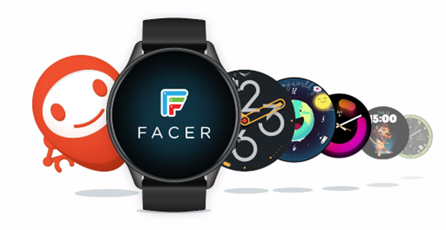
For more information about the MicroEJ and Facer partnership, contact your MicroEJ sales representative.
Connectivity
The watch connects to the smartphone over Bluetooth Low Energy. The Kernel provides the Bluetooth API to the applications, and uses the companion protocol to receive new applications from the Companion App.
Companion App
The VEE Wear Companion App is an Android application (Android 13 or higher) that runs on the smartphone.
It connects to the watch over Bluetooth Low Energy and sends Feature files (.fo) to the Kernel, which installs them.
Data Serialization
VEE Wear applications can use the MicroEJ data serialization libraries to encode the data that they exchange, for example with the smartphone, or that they store:
Format |
Library |
Use |
|---|---|---|
Java primitive types |
|
Binary encoding of the Java primitive types and of UTF-8 strings. |
|
Text format, readable by humans. Also used by REST services. |
|
|
Binary format, similar to JSON, with a smaller footprint. |
|
kXML 2 |
Text format, with a pull parser and a serializer. |
|
|
Compact binary messages.
The |
|
|
Binary format that the application reads directly from the buffer, without a parse step. The library also includes FlexBuffers, for data without a schema. |
|
|
Compact read-only format, with random access, stored in an application resource. |
A Kernel can expose the Protocol Buffers library to all the applications.
In that case, the Kernel calls ProtobufKernel.initialize() at startup.
For the setup of each library and for examples, see Data Serialization.
Location (GNSS)
The GNSS Foundation Library is a standard MicroEJ library that VEE Wear applications can use.
It gives the position of the watch: latitude, longitude, altitude, speed, and time.
An application gets the GnssManager instance, switches the GNSS engine on, reads the position when it needs it, and switches the engine off to save power.
To use GNSS on a VEE Wear device:
Install the GNSS Pack in the VEE Port, and implement the
LLGNSS_impl.hLow Level API for the GNSS receiver of the device.Expose the GNSS API in the Wear Kernel, so that the applications can use it.
On the Simulator, a Mock UI sets the GNSS values.
To show it, set the com.is2t.gnss.embedded.mock.ui property.
Native Interface
The managed code of the Kernel and the native code of the BSP communicate through two mechanisms:
SNI (Simple Native Interface): the managed code calls C functions, with parameters and a return value.
Event Queue: the native code sends events to the managed code, through a FIFO queue. The managed code receives the events asynchronously, in listeners. For example, the health stack of the device sends the sensor data to the Health Services through the Event Queue.
Only the Kernel declares native methods: a Feature cannot.
The Kernel calls the native functions and gives their result to the applications through the Wear Services.
For example, the Kernel implements the ExternalResourceService with native functions.
The Kernel also controls the access of the applications to the native resources.
To add a hardware feature to VEE Wear, implement the native functions in the BSP, call them in the Kernel, and expose them to the applications in a service.
Power Management
The VEE Port and the BSP put the device in the deepest low power mode as soon as the applications have no work to do (no drawing, no computation). The RTOS runs in tickless idle mode: when it has no task to run, the idle task stops the tick interrupt until the next scheduled event, such as the next timer. The BSP then selects a power mode from the idle time and from the peripherals in use:
Mode |
Selected when |
Effect |
|---|---|---|
Active |
The low power feature is disabled. |
The tick interrupt continues and the system stays active. |
Sleep |
A peripheral still works for the system, for example the GPU or the DMA transfer of the frame buffer. |
The tick interrupt stops and the MCU sleeps. The peripherals stay powered, and the core voltage does not change. |
Deep sleep |
No peripheral works for the system. |
The clocks stop and the system runs on a low-power clock. The BSP powers off the RAM partitions that it does not need to retain, and the power management IC lowers the core voltage. |
In sleep and deep sleep, the device wakes up on a button press, a touch on the screen, or the timer of the next event. In deep sleep, the BSP can also power off the peripherals that the application never uses, and select the wake-up sources.
Note
A debugger cannot connect while the MCU is in deep sleep. When a debugger is connected, the device uses the sleep mode instead of the deep sleep mode.
The applications and the BSP can reduce the power consumption further:
Performance profiles: a performance profile is a BSP configuration that sets the CPU clock, the core voltage, and the display clock, and can stop the services that the current page does not use. The application selects the profile that its page needs, for example a power saving profile for a watchface that changes once per second.
Partial refresh: the application redraws only the region that changes, for example the second hand. The drawing time is shorter, fewer lines go to the display, and the device stays longer in deep sleep.
Rendering during the flush: the device draws the next frame while the DMA sends the previous frame to the display, so the MCU wakes up for a shorter time.
RAM partitions: the BSP powers off the RAM partitions that it does not need to retain in deep sleep. For example, the RAM used to install a Feature is powered on only when the Kernel installs an application.
The power optimizations apply to the MCU. The BSP manages the power of the external peripherals, such as the display.
For an example on the i.MX RT595, see the power management chapter of the i.MX RT595 VEE Port documentation.